How to send a newsletter from Notion with MailerLite
Write your newsletter in Notion, create a MailerLite draft, send a test, and review results with a practical Nocadi workflow.
Your newsletter draft is ready in Notion. The next step is often another editing session: move the copy into MailerLite, repair the formatting, and check whether the version you are about to send matches the version your team approved.
Nocadi connects those two parts of the process. You write the campaign in a Notion database, create a branded draft in MailerLite, check a test email, and deliberately trigger the audience send. Here is how to set up that workflow.
Check your MailerLite account first
MailerLite requires its Advanced plan for the custom HTML campaign content used by this workflow. Check eligibility before connecting an account or paying for an upgrade. Your MailerLite subscription is separate from Nocadi. You also need a sender address configured in your email platform and an appropriate audience already available there.
Connect the two tools
Create a Nocadi account, verify your email, and create an organization. Connect Notion and give Nocadi access to the database you want to use for campaigns. Allow Update content so Nocadi can maintain its campaign properties and write information back.
Add MailerLite on the Connections page using an API token. Set the default sender name and email address. In template settings, add your logo, colors, footer and mailing address. Then attach your campaigns database. Nocadi adds the properties it needs, including status, subject, audience, preview URL and results.
Build a small first campaign
Start with a short page: a heading, two paragraphs, one image and one call to action. Select a test audience that you control. Enter a subject line and preview text. Keep the initial campaign simple so you can check the connection before adding a longer newsletter.
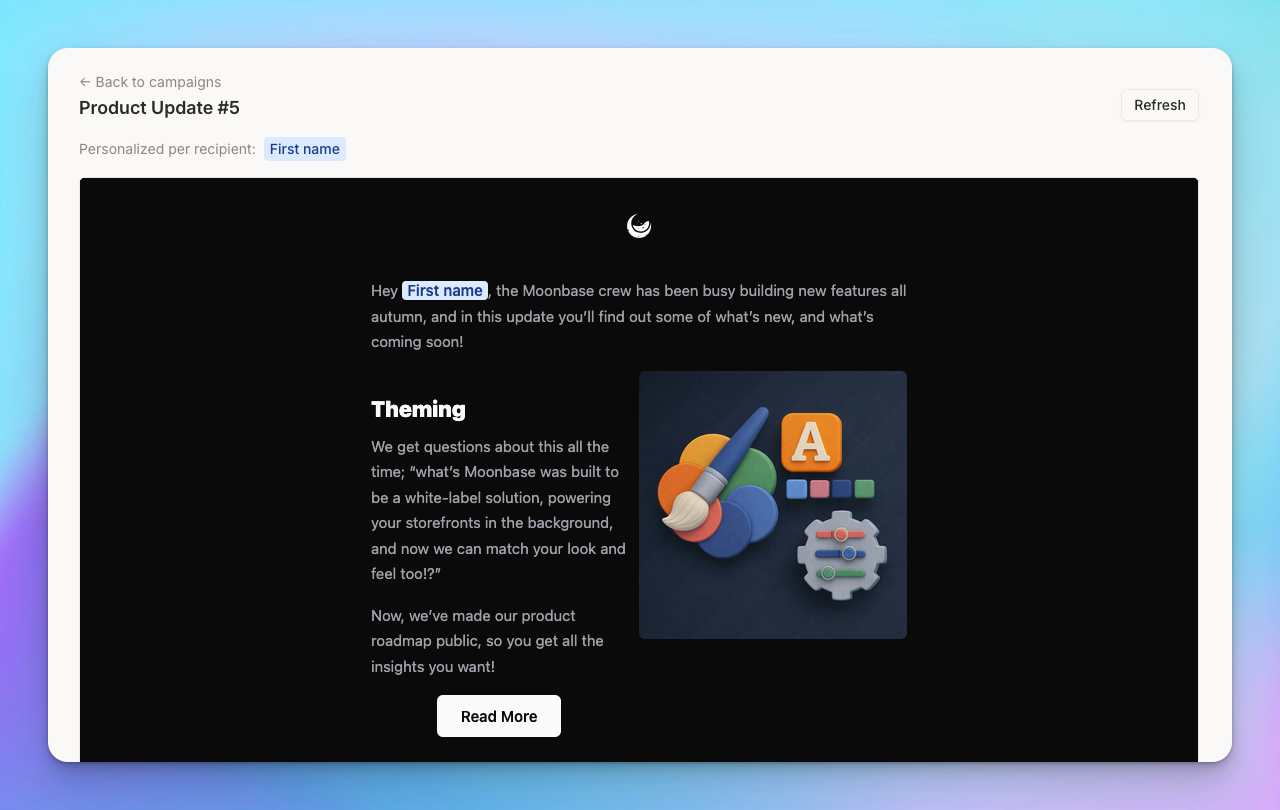
Set Status to Ready to send. This creates or updates the platform draft. Open the preview URL and compare it with the Notion page. If the result needs work, update the page and check the refreshed draft. Use the Result property to investigate any sync error.
Test before the audience send
Choose Send test to inspect the email in a real inbox. Check the subject, sender, image sizing, links and footer on both desktop and mobile. A successful preview does not replace an inbox check.
When the final version and audience are correct, choose Send to audience. If your organization requires team approvals, that action starts the review process and sending waits for the required sign-off. Recheck the recipient choice before taking this step.
Keep the campaign record useful
After a send, Nocadi can write campaign results back to the Notion row. Check the stats-updated timestamp before comparing campaigns. Add a short note about what you will change next time, such as a clearer call to action or a shorter introduction.
Start with one campaign and one controlled test. Once the workflow is familiar, use the same database for the next issue. Read the Nocadi setup guide at nocadi.com/guide or start the 14-day trial at nocadi.com/signup. Nocadi is currently €5 per month after the trial; your email platform costs are separate.
