Build a Notion newsletter calendar your team can actually send from
Build a practical Notion newsletter calendar with owners, audiences, review dates and a clear path from draft to tested campaign.
A newsletter calendar should answer more than when the next issue is due. The person sending it needs to know which content is final, which audience should receive it, who must review it, and where to find the last test.
You can build that record in a Notion database. Begin with the editorial decisions your team already makes, then connect the database to your sending workflow if that becomes useful.
Give each issue one home
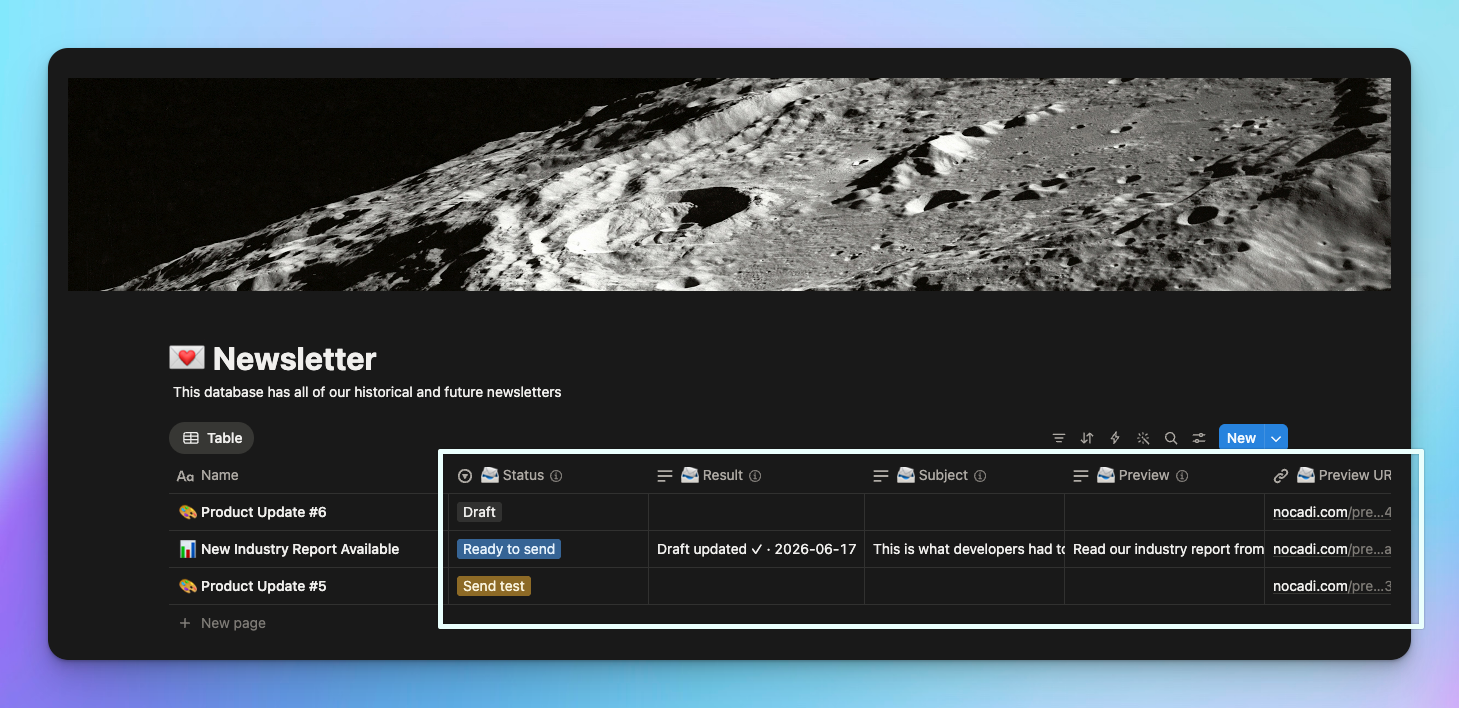
Use one database row per newsletter issue, with the page body holding the actual message. Add an owner, editorial deadline, planned publication date, content theme and main call to action. Include a review owner if another person needs to check the issue.
Give these fields clear meanings. The editorial deadline is when the writing should be ready for review. The publication date is when the audience should receive the message. Keeping both prevents a calendar from treating an unfinished draft as a campaign ready to send.
Separate planning from sending commands
An editorial field such as In writing describes the team's progress. A sending command tells another system to act. Keep that distinction clear if you connect your database to an email tool.
With Nocadi, its Status property controls the campaign workflow. Ready to send builds the email platform draft. Send test requests a test. Send to audience triggers the final send or required approval process. Keep your optional editorial stage field separate so a planning update cannot be mistaken for a sending instruction.
Create three useful views
A calendar view shows publication dates and cadence. An upcoming view shows the next few issues, their owners and review deadlines. A review view shows the work that needs a decision now.
Keep each view short enough to scan. Hide properties that the reader does not need for that task, while leaving them available in the underlying database. A writer and a reviewer can use the same campaign record without needing the same view.
Make the page body reusable
Start each issue from a small writing template: the reader's problem, the main message, supporting detail and the next action. Add a working note above or outside the material intended for the email, and remove any internal notes from the sending content before testing.
Use a consistent email design rather than redesigning each issue in Notion. If you use Nocadi, shared template settings provide the brand treatment while supported page blocks provide the content.
Review the calendar after the send
Keep the final campaign and results together. Record whether the issue went out as planned, which links mattered and what the team learned. One short observation is more useful than a large archive nobody reads.
For example, a team might notice that review starts too late on image-heavy issues. Move the image deadline earlier in the next calendar rather than adding more status fields.
Build the first version with your next three newsletters. Run one issue through writing, review, testing and sending before expanding it. When you want to connect the calendar to MailerLite or Mailchimp, use nocadi.com/guide to check the setup and account requirements.
